

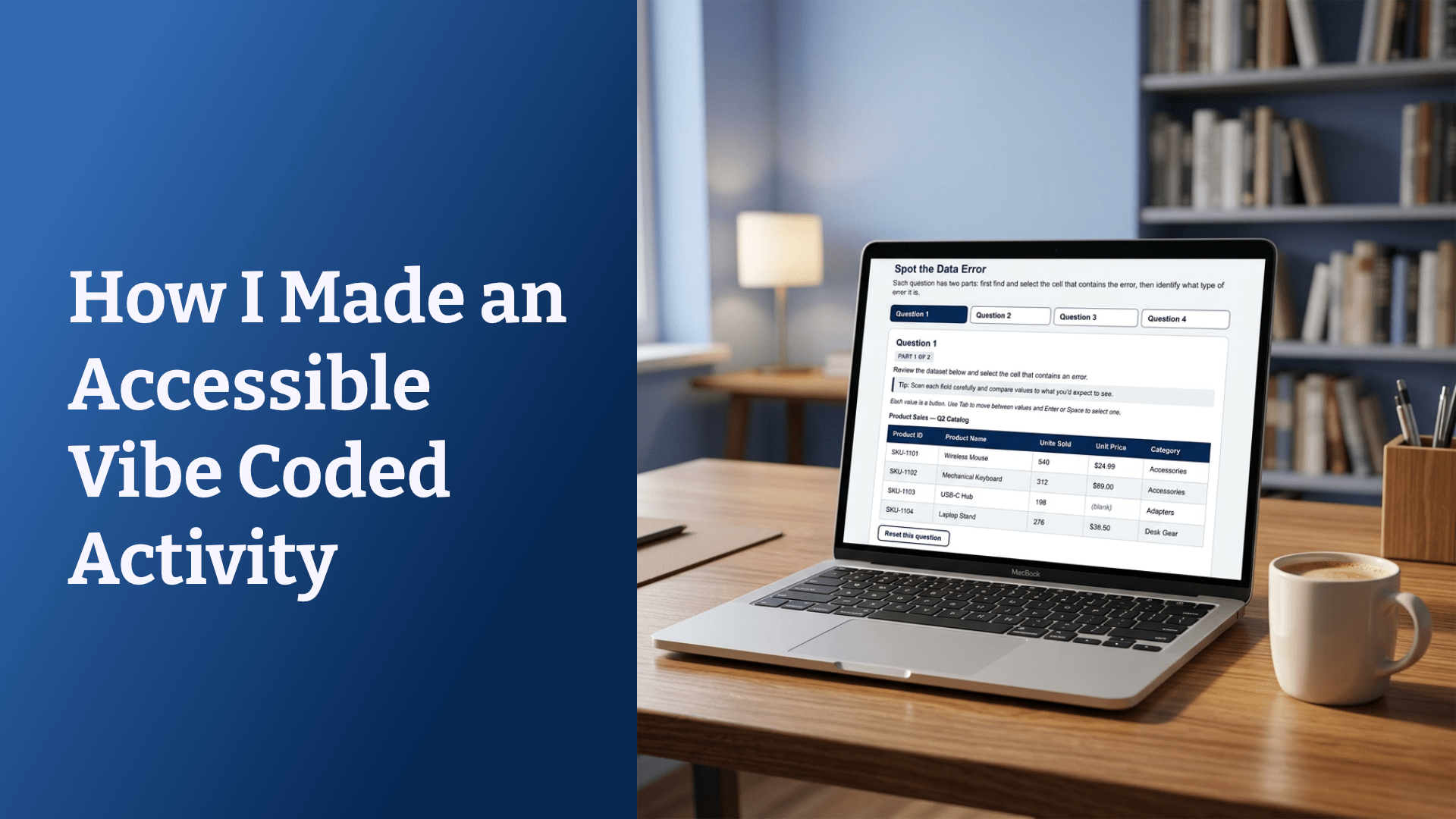
Like many instructional designers, I’ve been doing some vibe coding. For one of my current projects, I’ve been adding some vibe coded activities to Rise courses to create some better opportunities to practice skills. I’m finding vibe coding to work really well to create quick interactivity. Mostly, these are activities I could build in Storyline or another tool, but it’s faster using Claude. However, one of the problems of vibe coded activities is that they’re often not accessible unless you specifically ask for it. In this post, I’ll explain how I created a vibe coded activity in Claude, and then I’ll explain the changes needed to make it more accessible. One of my big lessons learned is that I need to ask for accessibility up front so the AI builds it in an accessible method in the first place rather than needing to update and revise it all later.
As a side note, I also just realized that Nano Banana (the image model in Gemini) can make mockups. Here’s the very simple prompt I used:
Make a photorealistic mockup of [the screenshot] on a laptop on a desk in a cozy home office with #adc3df walls. A cup of coffee is on the desk. A bookshelf is visible in the background. No books on the desk or people or plants.
Original data error spotting activity
I created a similar activity for an introductory data analysis course relating to a learning objective on spotting common errors in data. I’ve changed the questions, data, and other details so I’m not sharing any of my client’s actual information. You can try the activity yourself below (although the spreadsheet data means this activity works best on a larger screen).
Embedding the activity directly in my blog post has been challenging because of the variable height of the activity (plus, embedded html doesn’t play nicely with email). You can view both versions as Rise blocks or open the activity in a new tab.

This activity isn’t the flashiest use of AI, but it’s useful. Users get a way to look at sample data and practice finding errors, which is exactly the skill I needed to support. It’s fun to vibe code things like arcade games, but most of the time workplace training benefits from activities that look like people’s work.
How I created this activity
I created this vibe coded activity in Claude. As I observed after Jeff Batt’s vibe coding session at Training 2026 earlier this year, vibe coding really can be done by anyone now. The key skill is being able to clearly describe what you want and to provide the AI with specific feedback to iterate and improve. Your skills in describing interaction and giving clear directions matter more than your technical skills.
The good news is that instructional designers already have those skills, especially those of us who have experience writing storyboards to pass off to an elearning developer to build. When I started as an ID, I created PowerPoint storyboards and handed them off to our team of Flash developers. That meant I had to very explicitly note how I wanted interactions to work. If I didn’t write clear directions, then the Flash developers couldn’t understand what I wanted and build it. Vibe coding feels very similar, except now it’s the AI doing the role of that custom development.
My prompt to create the activity wasn’t technical; I focused on the content and interactivity.
I’m working on a course on data analysis 101 for [the role in my client’s audience]. I need some examples of data errors for some “spot the error” questions in each of these categories.
Create a web-based interactive activity for each of these types of errors. Include some sample data that would be related to [client’s industry–changed for the example above]. For each sample, users will click on the mistake in the data. Then, the feedback will confirm if they found the error (or errors) and tell them what type of error this was.
The activity must be a self-contained HTML file with inline CSS and Javascript so I can embed it in an Articulate Rise block.
My prompt continued by listing the four types of data errors and some of the tips from the course content that learners receive prior to this activity.
Iteration and testing
After I got the results, I did some iteration and testing.
Changed the question labels to numbers; the original version said what kind of error it was, which made the activity too easy.
Adjusted the instructions to avoid giving too many hints.
Added follow-up questions about the type of error.
Changed the colors to match my client’s branding.
All of that iteration happened through ordinary chat with Claude. Obviously, I could build something like this in Storyline, and I have done so in the past. However, this kind of activity is really tedious to build with multiple hotspots or rectangles and triggers. This took about 45 minutes to create, test, and iterate in Claude. That’s saving a significant amount of time.
Improving the accessibility
Unfortunately, I screwed up. I didn’t include any requirements for accessibility in my initial prompting and testing. So, I asked Claude if this activity would meet WCAG accessibility standards and if a screen reader user could use it. Claude replied, “Honest answer: as written, this activity does not fully meet WCAG 2.1 AA, and a screen reader or keyboard-only user could not complete Part 1.” So, I went through some more iteration to improve the accessibility. This still may not be fully accessible for all users, but it’s much more accessible.
This is where my big insight comes in: I really should have prompted for accessibility right from the start. I created extra work and testing by not asking for it in the first place. Fortunately, even though I did mess up by not planning for accessibility at the beginning, it didn’t take Claude that long to rework everything. Claude can build accessibility features, but you have to ask for them.
Accessibility problems and fixes
Claude helpfully suggested making a table with a side-by-side comparison of the problems and everything needed. While I write my blog posts myself with my human brain, I copied this table straight out of my chat.
, so a screen reader never announced it. Non-visual users got no confirmation of their answer.
The feedback area is now role=”status” with aria-live=”polite”, so results are announced automatically without moving focus mid-action.52.4.3 Focus Order (A)When Part 2 appeared, focus stayed put. A screen reader user had no cue that new content had been revealed and would likely never find it.Focus moves to the Part 2 prompt when it appears, and to the explanation when the question is solved, so new content is encountered in a logical order.64.1.2 / 1.3.1 — Tab pattern & structureThe tabs were styled
/ elements with no ARIA roles or keyboard model, and the data tables lacked header associations.
Tabs use the full ARIA tab pattern (role=”tablist”/tab/tabpanel, roving tabindex, arrow-key navigation). Tables use and an aria-labelledby caption so structure is announced correctly.71.4.11 Non-text Contrast (AA)Light-gray borders and some accent grays sat below the 3:1 threshold for UI component boundaries.Borders and gray text were darkened to meet AA contrast for both text and component boundaries.8Timing / readabilityThe wrong-answer state cleared after 0.9 seconds — tight for anyone reading the feedback, and especially for screen reader users.The flash now persists 1.4 seconds, giving more time to read before the state resets. (Reset is also fully available via a button, so nothing is time-locked.)
More accessible version
You can try the vibe coded activity with improved accessibility below. From a user perspective, if you use a mouse, not much looks different. But if you click one question and then tab through the activity, you’ll see that you can now access each cell in the table with a keyboard. You can also see the difference in how the activity previously conveyed feedback through color alone previously, but now also marks answers with an X or check mark.

More on AI
Check out all of my posts about using AI for instructional design for more posts where I show my work (the good and the bad) like this.
Upcoming events
Crafting Choices That Challenge: Designing Scenarios for Authentic Practice. July 15 at 12PM Pacific / 3PM Eastern. Register for this free webinar hosted by Training Mag Network.
Scenario-Based eLearning Design Certificate: Strategies to Engage, Motivate, and Transfer Skills. 3 online sessions starting August 5. Save $150 with Early Bird Registration.
Creating High-Quality AI Media: Prompting, Scripts, and Consistency. October 8. Register for the ATD AI Intensive.
DevLearn
Branch Smarter, Not Harder: Naming Conventions, Variables, and Bottlenecks in Storyline
November 3, 2026 at 9:20 AM
CE01: Storyline & Rise Pro Lab
Cohesive by Design: Generate Consistent AI Icons, Illustrations & Characters
November 4, 2026 at 10:00 AM
BYOD (Bring Your Own Device)


